
Ps Controller for PS4 PS5
DTFHMLibraries & Demo
4.577.00 Reviews
- Version
- 31.0
- Installs
- 100.00K
- Age Rating
- Everyone
Screenshots
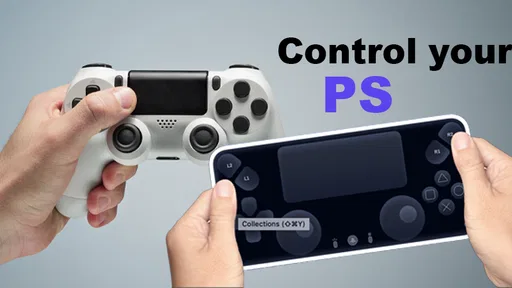
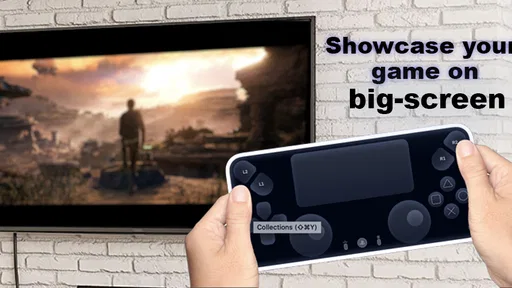
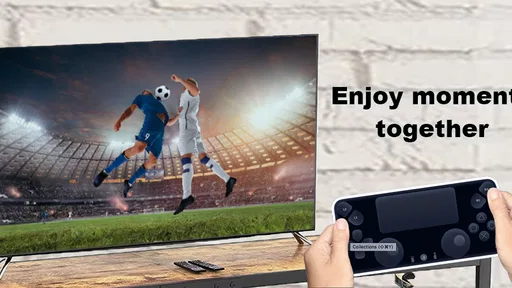
Our Review of Ps Controller for PS4 PS5
 Analysis by Appyee
I approached Ps Controller for PS4 PS5 as a practical remote-control utility rather than as a full gaming companion. Its purpose is straightforward: make controlling and playing from a phone easier when you want an alternative to handling a physical controller. That narrow focus is useful, but it also means the app deserves a more careful look than its short store description suggests. The important questions are not only whether it connects, but also how much control you retain, what choices are visible, and whether the experience suits the way you actually use a console.
In my testing mindset, I found the app most interesting for quick, casual situations. It can make sense when the phone is already in your hand and you want a convenient way to interact with a PS4 or PS5 setup. It is less convincing as a replacement for a proper DualShock or DualSense controller during demanding games. That distinction shapes my overall view: this is a free Android app in the Libraries & Demo category, developed by DTFHM, with a clear practical idea but a use case that depends heavily on comfort, responsiveness, and your expectations.
What the app is really useful for
The strongest way to understand this app is to separate remote control from serious game control. A phone can be convenient for navigation, simple menus, media-related interaction, or relaxed play where precision is not central. It is also handy when someone wants a second control option without immediately buying another physical accessory. If your need is occasional rather than permanent, a free tool can be appealing.
A realistic everyday example would be using the phone from the sofa after leaving the physical controller across the room. You may want to move through the console interface, start something, or handle a simple interaction without getting up. In that situation, the convenience is obvious. The phone is already available, and a software-based controller can remove a small but annoying interruption.
For action games, competitive shooters, racing titles, and anything that depends on fast camera movement, I would be more cautious. Touch controls do not automatically provide the same grip, tactile feedback, or muscle memory as a dedicated controller. Even if the connection works well, the physical experience remains different. I would treat this app as an occasional controller option, not as a guaranteed replacement for hardware designed specifically for gaming.
The app’s placement among library and demonstration tools also gives useful context. It is not presented as a large entertainment platform with its own game catalogue. You are using it to interact with an existing console environment. That makes its value dependent on your PS4 or PS5 setup, your network conditions, and the kind of activity you want to control.
Getting started without creating unnecessary friction
Before relying on it, I would prepare the console and phone in the same place and test the connection when there is no urgent need to play. This is a small but important habit. Remote-control tools can feel excellent when everything is ready and frustrating when you discover a pairing or network issue just as you want to use them.
I would also begin with a simple console task rather than a demanding game. Open a menu, move between a few options, and check whether the controls feel natural. This first test tells you more than a quick launch alone. You can notice whether touch buttons are easy to reach, whether your hands cover part of the display, and whether the phone remains comfortable after several minutes.
One non-obvious trade-off is that convenience can create a new dependency. A physical controller gives you a familiar layout and tactile landmarks; a phone gives you flexibility but asks you to look at the screen and manage a touch interface. If you switch between the two often, you may prefer the phone for setup and the physical controller for the actual game. That mixed workflow is probably more practical than forcing one device to do everything.
The current version is 30.0, and the app supports Android 7.0 or later. That makes it accessible to people using older compatible Android devices, although compatibility with the operating system does not guarantee that every phone will feel equally comfortable. Screen size, touch sensitivity, battery condition, and network performance can all affect the experience in ways that a version number cannot explain.
How I would judge responsiveness and comfort
When evaluating a remote controller, I would not judge it only by whether a button press eventually reaches the console. I would look at consistency. Occasional delay may be acceptable for menu navigation, while repeated lag can make a game unpleasant. The difference matters because a remote-control app can be perfectly adequate for one task and poor for another.
Touch layout is another practical concern. A phone does not provide the raised edges and physical resistance that help you operate a controller without looking down. For slower activities, this may be a minor inconvenience. For games requiring simultaneous movement, camera control, and quick button presses, it becomes a genuine limitation. I would therefore test the exact type of game you plan to play instead of assuming that success in a menu means success everywhere.
There is also a comfort trade-off that is easy to overlook. Holding a phone for a short interaction feels different from holding a gamepad for a long session. A case with raised edges, a large phone, or a slippery back can make touch control more tiring. If the app is mainly for occasional use, that may not matter. If you want several-hour gaming sessions, a dedicated controller is the safer choice.
Trust, visible choices, and responsible use
Because this app interacts with a console through a phone, I would pay attention to trust in a practical way. That means checking the permissions shown by Android, reading any connection prompts carefully, and noticing which actions require confirmation. I would not assume that a remote-control app has access to anything beyond what the operating system and the connection process visibly allow. At the same time, I would avoid granting access casually just because the app is free.
The most useful trust habit is to review the permission screen before completing setup. If Android presents a request, read its wording and decide whether it makes sense for the task you want to perform. You can also revisit app permissions later through the phone’s settings. This gives you a concrete form of control instead of relying on assumptions about what the app may or may not do.
Account control matters too. I would keep the console account and phone account separate in my thinking, even when the app is being used to operate the same entertainment system. Avoid entering credentials into unfamiliar screens unless the purpose is clear and the screen belongs to the expected system. If the app presents an account-related choice, pause and verify what is being requested before continuing.
That caution is not a criticism of DTFHM by itself. It is simply sensible behavior for any tool that sits between a phone and a connected device. A short description such as “Ps Controller” tells you the basic role, but it does not replace reading the prompts that appear during installation and use. Visible choices should guide your decision; guesses should not.
Data-sensitive moments deserve attention
The most sensitive moments are usually setup, sign-in, pairing, and any screen that asks you to approve access. I would take a screenshot or note the wording of an unexpected prompt before accepting it, especially if the request seems unrelated to controlling a console. This creates a simple record and makes it easier to reconsider the choice later.
I would also avoid using the app on a public or shared network when a private home connection is available. A home network is generally easier to recognize and manage. If you must use another network, confirm that the phone and console are communicating through the setup you intended rather than connecting to a similarly named device or network.
Another practical tip is to remove access when you stop using the app for a long period. Android lets you review installed apps and their permissions, and the console has its own account and device-management controls. Cleaning up unused connections is worthwhile because it reduces clutter and keeps your setup easier to understand. This is especially useful if several people use the same console.
I would not treat the app’s high user response as a substitute for personal judgment. It has an average rating of 4.6 from around 1.4 thousand ratings, and more than 100 thousand installs, which suggests that many people have found it useful enough to try. Those figures provide context, but they cannot tell you whether your phone, network, game, or comfort preferences will match theirs.
Where the usual alternatives are better
The obvious alternative is the console’s original physical controller. For precision, long sessions, and games that rely on tactile feedback, it remains the stronger option. You know where the buttons are without looking, the sticks provide physical resistance, and the overall shape is designed for repeated play. The app wins mainly when convenience matters more than that physical experience.
Another alternative is an official console companion or remote-play solution, where available for your particular setup. Those tools may be preferable if you want a broader connection with the platform rather than a focused controller interface. However, broader functionality can also mean more setup, more account involvement, or a less direct experience. I would choose based on the task: simple control favors a focused utility, while deeper console access may favor an official companion.
A third option is a phone-compatible gamepad. This sits between the two approaches. You still use the phone as the screen or connected device, but physical controls address the biggest weakness of touch input. The cost and extra hardware are disadvantages, so it is not the right answer for someone who only needs occasional navigation. For regular gaming, though, a physical phone controller may offer a more comfortable compromise than relying on touch controls alone.
Who should use it and who should skip it
I would recommend trying this app if you already own a compatible Android phone, want a free option, and mainly need occasional control over a PS4 or PS5. It is particularly suitable for relaxed use, quick navigation, testing a remote-control idea, or situations where the usual controller is temporarily unavailable. The Everyone age rating also makes it broadly accessible from a content standpoint, although younger users should still follow the account and permission rules set by the device owner.
I would skip it if your main goal is competitive gaming, dependable tournament-level input, or a full substitute for a physical controller. I would also hesitate if you dislike touch controls, have an unreliable home network, or need a solution that works without spending time checking connection prompts. In those cases, the usual hardware or an official platform-oriented option is likely to be less frustrating.
There is a useful middle ground for families and shared living rooms. One person can keep the physical controller for gameplay while another uses the phone for lighter console navigation. That avoids treating the app as an all-or-nothing replacement. It also makes the app’s limitations less disruptive because the most demanding tasks remain with hardware built for them.
My final view after weighing convenience against control
Ps Controller for PS4 PS5 has a clear purpose and a sensible place in a console owner’s toolkit. I like the idea of having a free, lightweight way to control a system from a phone, especially for short sessions and simple tasks. The app’s value is strongest when I need convenience immediately and do not want to search for a physical controller or buy another accessory.
My reservations are equally clear. A phone is not automatically a comfortable gamepad, and connection quality or touch layout can matter more than the app’s basic concept. I would test it with low-pressure tasks first, inspect Android’s visible permission choices, and keep account decisions deliberate. That workflow gives you a better chance of enjoying the convenience without handing over more access than you intended.
For me, the right recommendation is conditional rather than absolute: try it if you want an occasional remote-control option, but keep a proper controller for serious play. DTFHM’s app is free, supports Android 7.0 and newer, and has attracted a substantial user base since its release on June 8, 2023. Its strongest feature is not replacing every alternative; it is offering a convenient second way to interact with your console while leaving the final choice in your hands.
That makes it worth considering, provided you approach it as a focused utility rather than a complete gaming system. Check what Android asks, test the connection at home, decide whether touch controls suit your games, and remove access if you no longer need it. With those expectations, I can recommend giving it a careful try. Without them, a physical controller or a more comprehensive official solution will probably be the better fit.
Privacy and Permissions
See what permissions an app requests and how it handles your data.
- Other
- view network connections, full network access, prevent device from sleeping
Verdict
Strengths of Ps Controller for PS4 PS5
- Works with both PS4 and PS5 controllers
- Useful for checking buttons, sticks, and triggers
- Simple interface that is easy to understand
- Helpful for spotting drift or unresponsive controls
- Quick tests require little storage or setup
Limitations of Ps Controller for PS4 PS5
- Some features may depend on your phone’s hardware
- Bluetooth pairing can occasionally be unreliable
- Touchscreen controls may not feel as responsive as a controller
- Ads may interrupt testing in the free version
- It cannot repair physical controller problems
Other Releases by DTFHM
View All
Endoscope Camera
Libraries & Demo3.4

Samsung Galaxy SmartTag
Libraries & Demo3.4
Similar Picks in This Category
View All
PGT: GFX, Launcher & Optimizer
Trilokia Inc.4.5

AusweisApp Bund
Governikus Service GmbH3.7

Cardboard
Google LLC3.2

Gamers GLTool with Game Tuner
Trilokia Inc.4.5

Multi Web Chat - Read Secretly
World Scan & Cleaner3.8

App Cloner Premium & Add-ons
App Listo1.9
Frequently Asked Questions
What is Ps Controller for PS4 PS5, and what does it do?
Ps Controller for PS4 PS5 is designed to let your mobile device work as a remote controller or companion for compatible PlayStation consoles. Depending on the version and supported features, it may help with remote navigation, controller-style input, or connecting to a console over the same network. Before downloading, check the app description carefully because available functions can vary by device, operating system, region, and console model.
Is Ps Controller for PS4 PS5 an official Sony application?
Users should verify the publisher before installing Ps Controller for PS4 PS5. An app with a similar name is not automatically the official PlayStation Remote Play application, and third-party apps may have different capabilities, privacy policies, advertisements, or subscription requirements. Avoid entering your PlayStation account details unless you trust the developer and understand why the information is requested. Downloading from an official app store is also strongly recommended.
Does the app work with both PS4 and PS5 consoles?
Compatibility can depend on the exact app version, console software, phone model, and network configuration. Although the name mentions both PS4 and PS5, not every feature may work equally on both systems. Your console may need to be updated and configured for remote access, while remote-play functions generally require the console and mobile device to meet specific requirements. Review the current store listing and developer notes before relying on it.
What are the internet and network requirements for using this app?
For reliable operation, your phone and console normally need a stable network connection, and some features may require both devices to be connected to the same Wi-Fi network during setup. A weak wireless signal can cause delayed controls, disconnections, or poor responsiveness. Remote access outside your home may also use significant mobile data and depends on upload speed, router settings, console power options, and whether your console can be reached remotely.
Is Ps Controller for PS4 PS5 safe, free, and easy to use?
The answer depends on the specific publisher and version available in your app store. Many controller-style apps are free to install but include advertisements, optional purchases, or limitations that are removed through a premium plan. Check requested permissions, recent user reviews, update history, and the privacy policy before installation. Setup is usually straightforward, but pairing problems, input delay, and compatibility issues may occur with certain phones or network environments.
